
Let me tell you about the time I almost abandoned ChatGPT. I’d grown frustrated treating it like just a smarter Google – typing question after question, barely scratching the surface. Then, by accident, I stumbled across its custom plugins page. Suddenly, my creative workflow exploded: image designs, voice memos, privacy settings tailored for my neuroses. This post isn’t your run-of-the-mill ChatGPT listicle – we’re getting into the productivity features that’ll make you feel like a futuristic wizard (even if you, like me, can’t always remember your iCloud password).
Don’t Just Search, Collaborate: ChatGPT as Your Workflow Sidekick
Most people treat ChatGPT like a smarter Google—type a question, get an answer, maybe copy and paste the result. But if you’re still stuck in this “prompt and wait” mindset, you’re missing out on the real ChatGPT productivity hacks that are transforming workflows in 2025. The secret? Stop searching, and start collaborating. With new features like Canvas mode, ChatGPT is more than a search engine—it’s your creative partner, code reviewer, and brainstorming buddy, all in one split-screen workspace.
From Search Box to Shared Workspace: Why Canvas Mode Changes Everything
Canvas mode is one of the most powerful ChatGPT features 2025 has to offer, and it’s available even to free users. To activate it, simply start your prompt with the word canvas. Instantly, you’ll see your screen split in two: on one side, your prompt and ChatGPT’s response; on the other, a live, editable document. This isn’t just a new interface—it’s a whole new way to work.
In traditional ChatGPT sessions, making a small edit meant re-prompting the AI, waiting for a new response, and hoping it got your revision right. With Canvas, you can jump right in and edit the output directly—no more cycling through prompts for every tiny change. As one user put it:
“It’s almost like you’re sharing a Google doc with another person, but instead you’re sharing it with ChatGPT.”
Real Story: Co-Writing a YouTube Script with Canvas
Let me share a quick story. The first time I used Canvas mode, I was scripting a YouTube video. Normally, I’d prompt ChatGPT for a draft, copy it into Google Docs, and then spend ages tweaking and re-prompting for better hooks or transitions. But with Canvas, I typed canvas: Write a YouTube script about AI productivity hacks. Instantly, the draft appeared. I spotted a clunky intro—so I just clicked and rewrote it on the spot. ChatGPT noticed my changes and offered suggestions in real time. The process felt less like talking to a robot, and more like brainstorming with a creative partner I could interrupt mid-sentence.
Hands-On Editing: The Split-Screen Advantage
- Direct Edits: No more waiting for the AI to regenerate text. Just click, type, and move on.
- Live Suggestions: ChatGPT adapts to your edits, offering new ideas or fixes as you work.
- Reduced Friction: Interactive workflows mean less time lost to back-and-forth prompting.
This seamless editing is a game-changer for ChatGPT workflow optimization. Research shows that interactive AI workflows boost both productivity and creativity, letting you iterate faster and more freely.
Not Just for Writing: Code Collaboration in Canvas
Canvas mode isn’t limited to text. It’s a powerful tool for developers, too. You can ask ChatGPT to generate code, then tweak it directly in the split-screen editor. Need to fix a bug or test a new approach? Edit the code yourself, and ChatGPT will help you debug or optimize in real time. This versatility makes Canvas one of the top ChatGPT advanced hacks for 2025.
Mini-Wild Card: Interrupt, Brainstorm, Iterate
Imagine brainstorming with an AI you can interrupt at any moment—mid-sentence, mid-idea, mid-code. That’s what Canvas mode delivers. You’re no longer stuck in a linear prompt-response cycle. Instead, you and ChatGPT are co-authors, co-coders, and co-creators, shaping the output together as you go.
SVG Chart: Time Spent on Task Revisions – Traditional vs. Canvas Mode
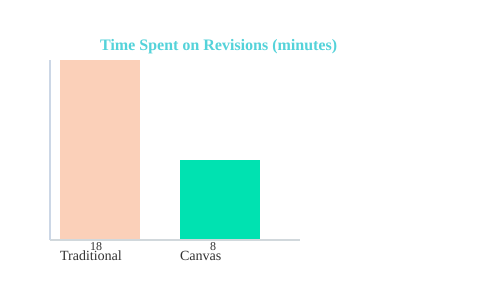
Canvas mode cuts revision time by more than half, making it a must-have for anyone serious about ChatGPT productivity hacks.
Creative Superpowers Unlocked: Custom GPT Plugins & Canva Integration
When you think of ChatGPT, you probably imagine text-based answers and smart conversations. But there’s a productivity revolution happening behind the scenes—one that’s quietly transforming how creatives, designers, and idea people work. The secret? Custom GPT plugins and, in particular, the Custom GPT plugins Canva integration. These tools are not just add-ons; they’re creative superpowers that extend ChatGPT’s reach far beyond simple search or text generation.
Custom GPT Plugins: Extending ChatGPT’s Reach
One of the most exciting ChatGPT productivity features is the ability to use custom plugins. On the left-hand column of your ChatGPT interface, you’ll spot a section labeled GPTs. Click on it, and you’ll discover a treasure trove of specialized engines—each designed to tackle unique tasks. These custom GPT plugins diversify ChatGPT’s creative output, letting you move from conversation to creation in seconds.
- Canva: Instantly design thumbnails, social media graphics, and more.
- Custom GPTs: Automate research, summarize articles, analyze data, or even brainstorm ideas.
As one user put it:
A popular one is Canva that I use – you can start the chat using Canva as a plugin...design a thumbnail for me.
Lightning-Fast Design with Canva Integration
For content creators, the Custom GPT plugins Canva integration is a game changer. Imagine you’re in a chat, brainstorming video ideas. With a simple prompt, you can ask ChatGPT (with Canva enabled) to design a YouTube thumbnail. In seconds, you’ll get two design options. Click your favorite, and it opens directly in Canva, ready for you to tweak and publish. No more switching tabs, downloading files, or starting from scratch.
- Generate thumbnails, banners, or social posts from a single prompt.
- Edit the design in Canva with full creative control.
- Iterate rapidly—ask for new versions, colors, or layouts right from the chat.
This seamless workflow is why Canva is one of the most valued ChatGPT content creation tools for modern creatives.
Step-by-Step: How to Access and Use Plugins
- Open ChatGPT and look for the GPTs section on the left sidebar.
- Click to view available plugins—Canva is often featured.
- Select Canva (or another plugin) to launch a chat session with that tool enabled.
- Type your creative request (e.g., “Design a thumbnail for my blog post”).
- Review the generated options and click to open your favorite in Canva for editing.
Many plugins are available in both free and paid versions. The free version gives you access to essentials like Canva, while paid plans unlock advanced and niche plugins for specialized tasks.
Wild Card: My Fantasy Plugin – ‘CoffeeBot’
Imagine a plugin that analyzes your chat logs and suggests the perfect time for a caffeine break. CoffeeBot could be the ultimate productivity sidekick, nudging you when your creative energy dips. While it doesn’t exist (yet), it shows how custom GPT plugins could evolve to support every aspect of your workflow.
The Difference for Creatives, Designers, and Idea People
With custom GPT plugins, ChatGPT becomes more than a chatbot—it’s a creative partner. Designers can jumpstart projects, marketers can generate campaign visuals, and writers can brainstorm and visualize ideas without ever leaving the chat. This integration saves time, sparks new ideas, and removes technical barriers to creation.
Plugin Usage Comparison: Basic vs. Pro-Level
| Plugin | Free Version | Paid Version | Best For |
|---|---|---|---|
| Canva | Thumbnails, basic image editing | Advanced design features, premium assets | Content creators, marketers |
| Custom GPTs | General tasks (summarizing, brainstorming) | Niche tasks (data analysis, automation) | Researchers, power users |
With ChatGPT content creation tools like these, you’re not just searching—you’re creating, designing, and iterating at the speed of thought.
When Privacy Gets Personal: Mastering ChatGPT’s Data Controls
Wild Tangent: The First AI That Remembers Everything… and Why That Freaked Me Out
Imagine an assistant that never forgets a single thing you say. At first, it sounds like a dream for productivity—no more repeating yourself, no more lost context. But when I first realized that AI like ChatGPT could remember every prompt, every detail, and every personal tidbit I shared, it honestly gave me pause. What if I wanted to brainstorm sensitive ideas, or ask about something personal? The thought of my data living on, used for who-knows-what, made me rethink how I used these tools. If you’ve ever hesitated to use AI because of privacy worries, you’re not alone.
Temporary Chat: How to ‘Go Incognito’ with ChatGPT Privacy Controls
ChatGPT now offers a Temporary Chat mode—a game-changer for privacy-conscious users. Think of it as the incognito mode for your AI conversations. When you activate Temporary Chat, none of your prompts are saved, nothing goes into your chat history, and your data isn’t used for model training. As OpenAI puts it:
Temporary chats – not in history, no model training, and the memory is turned off.
This is perfect for one-off, sensitive tasks. For example, if you want to generate an image using a personal photo or discuss confidential information, you can do so without leaving a digital footprint in ChatGPT.
How to Use Temporary Chat (Free & Paid Versions)
- Look for the dotted chat bubble icon next to your profile letter in the top right corner.
- Click it to start a Temporary Chat. You’ll see a notification confirming that your session is private.
- Once finished, you can delete the chat. It won’t appear in your chat history, and the data is not retained.
This feature is available in both free and paid tiers, making ChatGPT privacy settings accessible to everyone.
Permanently Private: Disabling Conversation Memory and Model Training
If you want to take privacy even further, ChatGPT allows you to disable data retention and sharing on a permanent basis. This means your conversations won’t be remembered, and your data won’t be used to improve the AI model.
How to Toggle Permanent Privacy Controls
- Click your profile icon in the top right corner and select Settings.
- Navigate to Data Controls.
- Find the option labeled Improve the model for everyone (default: ON). Toggle it OFF to stop your data from being used for model training.
- Under Personalization, locate the Memory section. Toggle off both Reference saved memories and Reference chat history to prevent ChatGPT from remembering past conversations.
These ChatGPT privacy controls are available for all users, ensuring you can tailor your experience to your comfort level.
Pros and Cons: Forgetful AI vs. Productivity Features
- Privacy Boost: Disabling memory and training keeps your data private and secure.
- Convenience Trade-off: Without memory, ChatGPT can’t recall previous conversations or context, so you may need to repeat information for ongoing projects.
- Best of Both Worlds: Use Temporary Chat for sensitive, one-off tasks, and enable memory for long-term projects where context matters.
Visual Guide: Privacy Benefits of Temporary vs. Permanent Settings
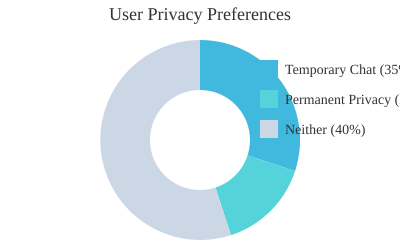
This chart shows how users balance ChatGPT privacy settings: many use Temporary Chat for sensitive tasks, some opt for permanent privacy controls, while others stick with default productivity features.
Voices in the Machine: Real Conversations with ChatGPT (and Siri’s Makeover)
ChatGPT Voice Mode: Real-Time Conversations and Instant Feedback
Imagine prepping for a job interview—not with a friend, but with ChatGPT’s voice mode. One user recently shared how they used ChatGPT voice mode interactive conversations to rehearse for a McDonald’s interview. They simply activated voice mode, said, “I have a job interview coming up with McDonald’s and I would like to practice with you,” and ChatGPT responded just like a real interviewer. It asked common questions, listened to answers, and even gave helpful feedback: “That’s a good start. You can also mention any other reasons like the opportunity to learn new skills or work in a team environment.”
This is more than just a chatbot reading your text. Voice mode allows you to converse with ChatGPT like another person. You speak, it listens, and you get real-time, spoken feedback—perfect for practicing interviews, rehearsing presentations, or even memorizing scripts for a play. The instant feedback loop makes it feel like a true conversation, not just a digital Q&A.
Voice Mode vs. Standard Chat: What’s the Difference?
When you open the ChatGPT app, you’ll notice two options at the bottom right: a microphone icon and a “voice mode” button. The microphone simply transcribes your spoken instruction into text—helpful, but limited. ChatGPT voice mode, on the other hand, enables a full, two-way audio conversation. You can ask follow-up questions, get clarifications, and even receive coaching on your answers. For anyone looking to boost productivity or confidence in public speaking, this is a game-changer among ChatGPT productivity features.
- Standard chat: Type or dictate a prompt, get a text response.
- Voice mode: Hold a real-time, back-and-forth conversation with instant spoken feedback.
Apple Users: How to Replace Siri with ChatGPT (Step-by-Step)
If you’re an Apple user, you might have wondered: can I make Siri smarter by using ChatGPT? The answer is yes—if you have an iPhone 15 Pro, Pro Max, or newer. Here’s how to set it up:
- Go to your Settings menu.
- Scroll down and tap Apple Intelligence.
- Ensure Apple Intelligence is enabled (toggle it on).
- Under Extensions, find and tap ChatGPT.
- Tap Setup, then Next, and enable ChatGPT.
If you go into your settings menu, you can go under Apple Intelligence... enable chat GPT.
Once enabled, Siri will automatically hand off complex tasks to ChatGPT. For example, if you ask Siri to “write a 10-minute YouTube script about the best use case scenarios of ChatGPT,” it will call on ChatGPT to generate the content. You can even say, “Hey Siri, ask ChatGPT to…” for direct access to advanced ChatGPT content creation tools.
Note-Taking with Voice: Save Output Directly to Apple Notes
Another powerful ChatGPT productivity feature is the ability to create notes by voice and save them directly into Apple Notes. During a voice session, just say, “Make a note out of this,” and ChatGPT will save your output for later editing. This seamless integration is perfect for capturing ideas, meeting notes, or even draft scripts on the go.
Device Requirements: Who Can Use These Features?
To access Apple Intelligence and integrate ChatGPT with Siri, you’ll need an iPhone 15 Pro, Pro Max, or a newer device. This ensures the advanced AI features run smoothly and securely. Voice mode in ChatGPT is available on supported devices and requires the latest app update.
FAQ: ChatGPT Voice Mode and Apple Integration
| Feature | Availability | Apple Integration |
|---|---|---|
| ChatGPT Voice Mode (Interactive) | All platforms with latest ChatGPT app | Works independently; not tied to Siri |
| ChatGPT Voice Mode (Standard Chat) | All platforms | Text-to-speech only |
| ChatGPT + Siri Integration | iPhone 15 Pro/Pro Max or newer | Requires Apple Intelligence enabled |
| Voice Note Creation | Supported Apple devices | Saves directly to Apple Notes |
The Secret to Next-Level Organization: Projects and Screen Sharing (Paid Power-Users Only)
If you’ve ever wondered whether the $20/month ChatGPT Plus subscription is worth it, the answer comes down to two game-changing features: Projects and Screen Sharing (exclusive to iPad and iPhone). These tools are designed for power-users who crave seamless organization and real-time visual collaboration. Let’s break down how these ChatGPT paid features can revolutionize your workflow—and why they’re not just bells and whistles, but real productivity boosters.
Personal Lesson: Projects Made My YouTube Planning Click
Before Projects, my YouTube content ideas and scripts were scattered across dozens of random ChatGPT conversations. Endless scrolling, lost threads, and confusion were the norm. But after migrating everything into new ChatGPT Projects, suddenly, everything made sense. Each video series, script draft, and research thread had its own dedicated space. Organization wasn’t just easier—it was transformative.
Projects: Organize Chats by Topic, Task, or Client
With the paid version, you unlock the Projects feature—think of it as folders for your ChatGPT chats. As one power-user put it:
Projects...organize your chats that you've had with ChatGPT under certain categories.
Here’s how you can use ChatGPT Projects organization in your daily work:
- By topic: Keep all your travel planning, content ideas, or research in separate folders.
- By client: Freelancers and agencies can group conversations by client or campaign.
- By creative campaign: Marketers can manage brainstorming, copy drafts, and feedback in one place.
- By task: Separate language practice, coding help, or business strategy sessions.
Each Project can have its own instructions and persistent memory. For example, you can tell ChatGPT to always reply in beginner Korean for your language practice Project, or to use a specific tone for your YouTube scripts.
Screen Sharing on iPhone/iPad: Instant Visual Collaboration
The ChatGPT screen sharing iPad iPhone feature is a true breakthrough for fieldwork, troubleshooting, and learning. With the paid plan, you can:
- Open the ChatGPT app on your iPhone or iPad.
- Tap the camera icon in voice mode.
- Hold up a real-world object, document, or screenshot.
- Ask ChatGPT, “What am I looking at?” or get instant explanations.
Imagine you’re traveling and spot an unfamiliar gadget, or you’re working on a project and need help identifying a component. Just share your screen—ChatGPT can analyze and explain what’s in front of you, live. This is not available on MacBook or desktop yet, making it a unique mobile power-user perk.
Paid-Only Perks: Is $20/Month Worth It?
Here’s what makes the paid version potentially worthwhile:
- Projects: No more endless scrolling—organize by theme, task, or client.
- Screen sharing: Real-time visual help on iPhone/iPad.
- Advanced memory: Persistent instructions and context per Project.
- Team collaboration: For $200/month, businesses get shared Projects and advanced admin controls.
Real Examples: Projects in Action
- Travel Planning (Korea): Group all your itinerary chats, visa info, and language practice in one Project. Set instructions for ChatGPT to reply in simple Korean, so every response helps you learn.
- YouTube Channel Management: Keep scripts, brainstorming, and analytics discussions organized by video series or campaign.
- Language Practice: Create a Project for each language, with custom instructions for tone and difficulty.
Comparison Chart: Free vs. Paid ChatGPT Plans
| Feature | Free Version | Paid Plan ($20/mo) | Team Plan ($200/mo) |
|---|---|---|---|
| Projects (Folders) | No | Yes | Yes (with team sharing) |
| Screen Sharing (iPad/iPhone) | No | Yes | Yes |
| Advanced Memory | Limited | Yes | Yes |
| Team Collaboration | No | No | Yes |
| Example Projects | Not supported | Travel, YouTube, Language | Client, Team, Campaigns |
With ChatGPT paid version features comparison clear, it’s easy to see how Projects and Screen Sharing can unlock next-level productivity for power-users.
Automation, Analysis, and Time-Saving Hacks: ChatGPT for Data Lovers
Mini-Case: Google Calendar Screenshot vs. Direct API Connection
One of the most underrated ChatGPT automation features is its ability to analyze visual data, not just text. Imagine you want to optimize your work schedule for your YouTube channel. You know scripting, editing, and filming each take a certain number of hours, but your calendar is a mess. You might think connecting your Google Calendar directly to ChatGPT would be the best way to automate this. Surprisingly, real-world tests show otherwise.
When you connect your Google Calendar via API, ChatGPT sometimes struggles to interpret the data correctly. In a recent experiment, the API connection failed to read the calendar properly. However, when a screenshot of the calendar was uploaded and fed into ChatGPT, the results were far more accurate. As one user noted:
When I took a screenshot of the calendar and fed it into the prompt, it actually worked a lot better.
ChatGPT visually scanned the calendar image, identified open slots, and scheduled a total of 21 work hours, breaking them up by day and suggesting the best times for each task. This is a perfect example of how ChatGPT automation and analysis can sometimes outperform traditional integrations.
Automation Toolkits: Scheduling, Recurring Prompts, and Document Analysis
ChatGPT’s productivity features go beyond simple question-answering. Here’s how you can harness its automation toolkit:
- Task Scheduling: Feed ChatGPT your calendar (text or image) and let it suggest optimal work times.
- Recurring Prompts: Set up prompts that remind you to review goals, summarize meetings, or generate weekly reports.
- Document/Image Analysis: Upload screenshots, PDFs, or images of notes—ChatGPT can extract, summarize, or organize the data for you.
These ChatGPT time-saving tips let you automate repetitive tasks, freeing up hours each week.
Data Analysis: Reading Visuals, Finding Work Slots, Summarizing Tasks
One of the most powerful ChatGPT data analysis tricks is its ability to interpret non-text data. For example, if your schedule is scattered across sticky notes, screenshots, or handwritten planners, simply upload an image. ChatGPT can:
- Read and interpret messy or complex visuals.
- Identify free time slots and suggest when to work on specific projects.
- Summarize your commitments and help you prioritize tasks.
This feature is especially useful when your digital tools don’t sync perfectly or when you need a quick, visual overview.
Tips for Maximizing Time: When Manual Beats Automated (and Vice Versa)
Not every automation is perfect. Sometimes, manual methods—like uploading a screenshot—work better than direct integrations. Here’s how to decide:
- Use manual uploads (screenshots, images) when integrations are unreliable or your data is visual/non-standard.
- Use direct connections (APIs, plugins) for structured, text-based data and recurring tasks.
- Test both methods and stick with the one that gives you the most accurate results for your workflow.
Table: Common Automation and Analysis Hacks
| Hack | Works Best For | Watch For |
|---|---|---|
| Calendar Screenshot Upload | Messy, visual schedules; quick slot finding | Image clarity; manual upload required |
| Direct Calendar API Connection | Structured, text-based schedules | Integration errors; missed data |
| Recurring Prompts | Habit tracking, reminders, regular reports | Prompt fatigue; needs regular updating |
| Document/Image Analysis | Extracting info from PDFs, notes, screenshots | Handwriting recognition limits; file size |
With these ChatGPT productivity features, you can automate, analyze, and save time—no matter how chaotic your data looks.
FAQ: Offbeat Questions Real People Ask About ChatGPT’s Productivity Features
What’s the weirdest use case you’ve seen lately?
One of the most unusual—and surprisingly practical—ChatGPT hacks I’ve come across is users organizing their conversations by astrological sign. Imagine having separate “projects” or folders for Aries, Taurus, Gemini, and so on, each filled with personalized horoscopes, compatibility reports, and daily affirmations. This is only possible with the paid version, which lets you create and categorize chats for ongoing, themed discussions. It’s a fun reminder that ChatGPT productivity features aren’t just for business or academics; they can be tailored to any passion or hobby, no matter how niche.
Can you really trust AI with your sensitive data?
This is one of the most common—and important—questions from real users. ChatGPT privacy controls are robust, but it’s smart to understand your options. Both free and paid versions offer Temporary Chat, which works like incognito mode in a browser: your conversation isn’t saved, and your data isn’t used to train the model. For deeper privacy, you can go into Data Controls and turn off “Improve the model for everyone,” and under Personalization, disable “reference saved memories” and “reference chat history.” As one user put it:
“For people who value privacy, these are ways that you can turn it off so ChatGPT doesn’t hold on to your information.”If you turn off all memory and data tracking, ChatGPT won’t remember your context between sessions, so you’ll need to re-explain things each time. But for those who value privacy above convenience, these settings are a must.
Are all features available on the free version, or do I need to pay?
Not all ChatGPT productivity features are available for free. The free version is powerful—you can use custom GPT plugins (like Canva), canvas mode for collaborative editing, voice mode, and even privacy controls. However, the paid versions ($20 or $200 per month) unlock advanced perks. These include organizing chats into “projects,” automating tasks with scheduled prompts, and using live camera analysis for real-time visual identification. If you’re an Apple user with the latest devices, you’ll also get deeper integration with Apple Intelligence, letting you use ChatGPT as a voice assistant replacement. If you’re unsure whether to upgrade, try the free features first and see if you hit any limits.
What’s your favorite plugin—and what do readers recommend?
My personal favorite is the Canva plugin. It’s a game-changer for anyone who creates content. You can ask ChatGPT to design a YouTube thumbnail, social post, or presentation slide, and it generates options you can edit directly in Canva. Readers have also highlighted plugins for scheduling, language translation, and even recipe generation. If you have a favorite, share it in the comments—I’ll feature the best picks in future updates!
Best tip for YouTube content creators?
If you’re making YouTube videos, ChatGPT can be your secret productivity weapon. Use canvas mode to draft scripts, outlines, or video descriptions collaboratively. The Canva plugin is perfect for generating thumbnails. For scheduling uploads or brainstorming content ideas, upload a screenshot of your calendar and let ChatGPT suggest the most efficient workflow. And if you’re on an iPhone 15 Pro or later, use voice mode or Apple Intelligence integration to dictate ideas on the go. These ChatGPT hacks can save you hours each week.
What happens if I turn off all memory and data tracking?
When you disable all memory and data tracking, ChatGPT becomes a “stateless” assistant. It won’t remember anything from previous sessions, which means you get maximum privacy but lose the convenience of context. You’ll need to reintroduce yourself and your needs each time. For some, this is a small price to pay for peace of mind. For others, the trade-off isn’t worth it. The good news: you can toggle these settings anytime, so you’re always in control.
In summary, ChatGPT’s productivity revolution goes far beyond simple search. Whether you’re using the free version or exploring paid features, there’s a world of creative, practical, and even quirky ways to boost your workflow. Experiment with plugins, try out privacy controls, and don’t be afraid to get weird—sometimes the best productivity hacks are the ones nobody talks about.
TL;DR: ChatGPT is far more than a fancy search tool. Explore voice interactions, custom plugins, privacy controls, clever workflow features, and more – and find out which version (free or paid) might work for you. You’re about to get a lot more done, in less time, with less stress.
Post a Comment